Features
Stats and sessions
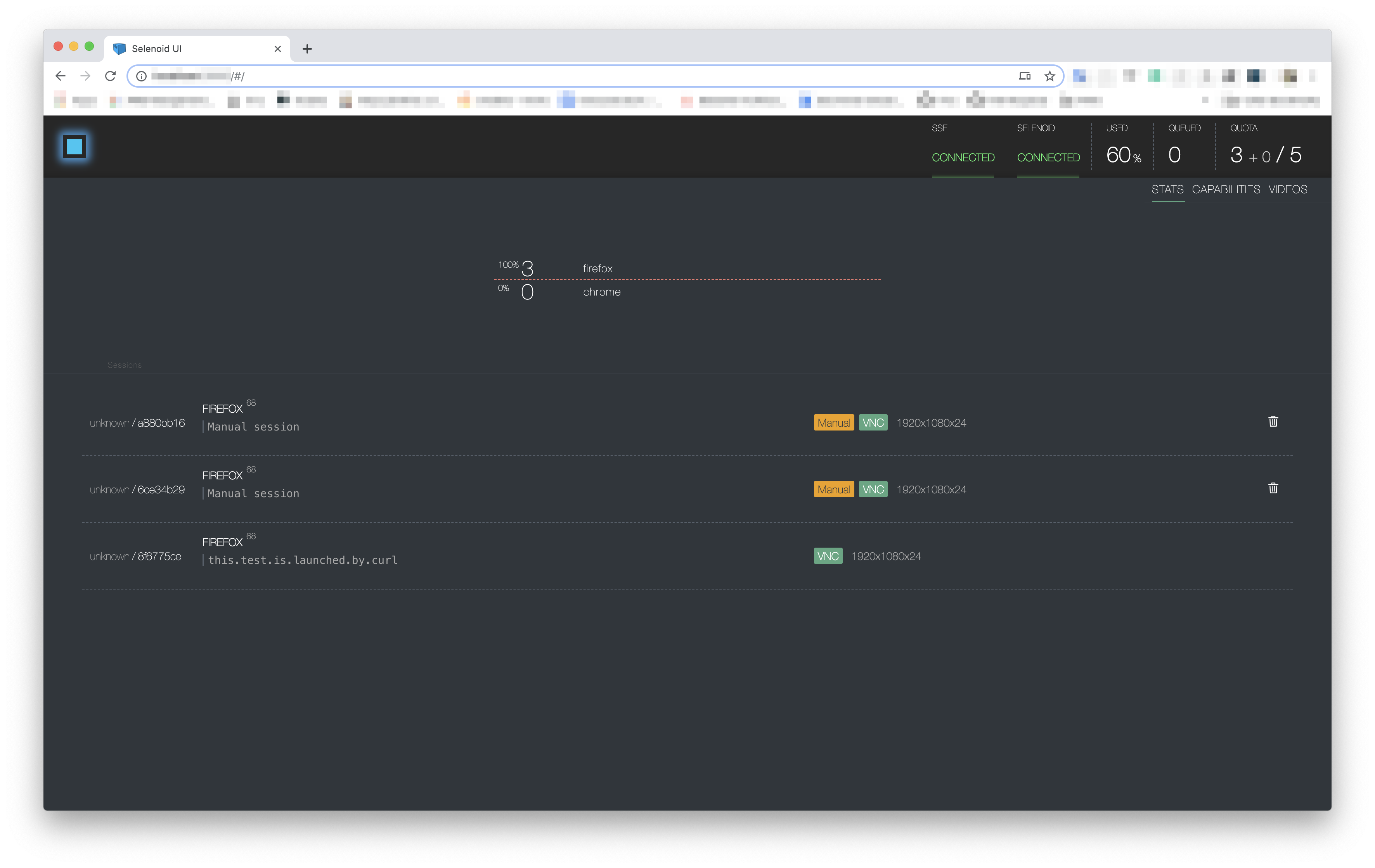
Section titled “Stats and sessions”Shows current quota usage, pending browsers and queue. Gets updates via SSE, so no need to refresh browser to see what happens. It will reconnect automatically on any temp failures. Each session on this screen can be closed.
Search
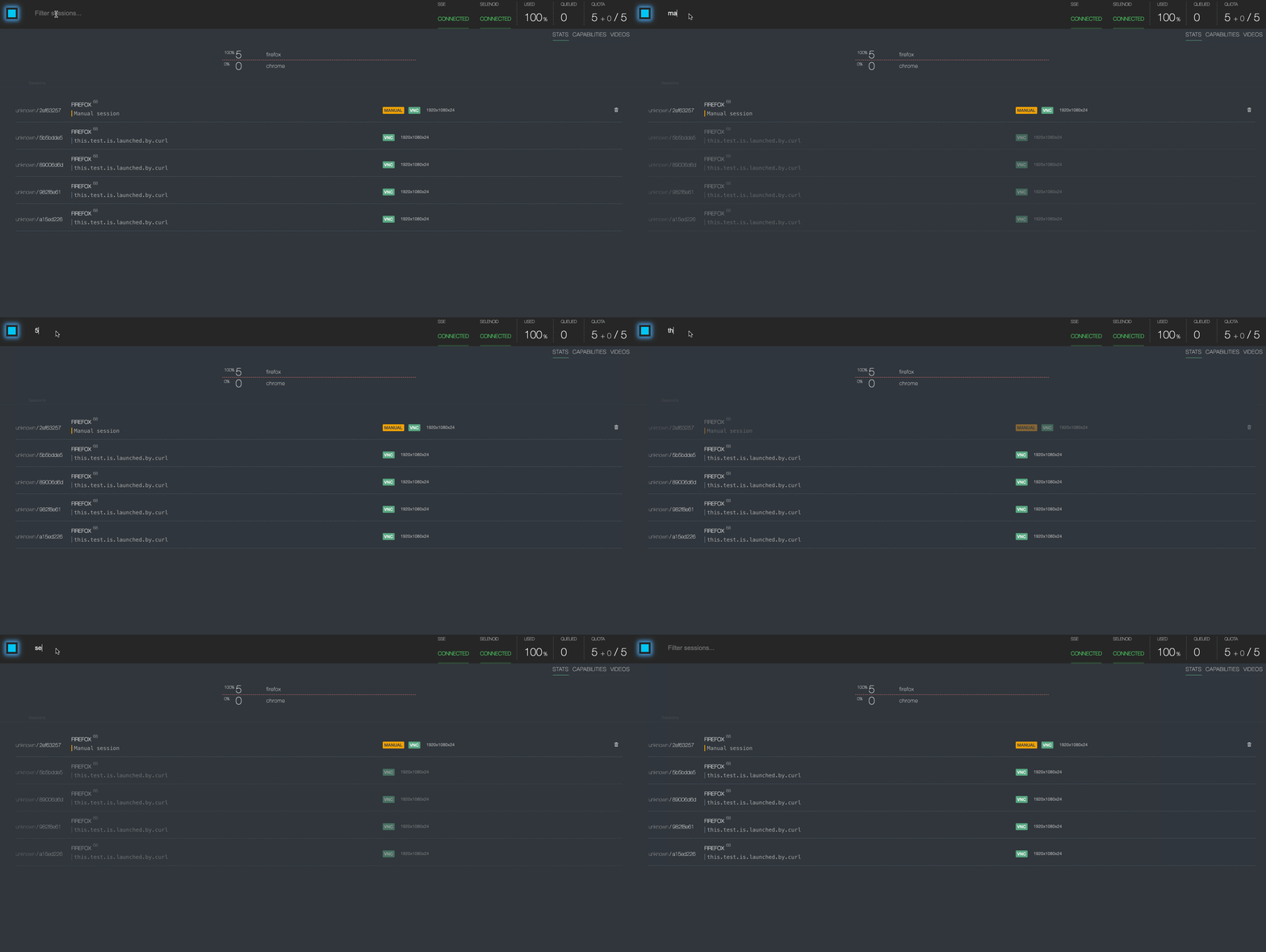
Section titled “Search”Sessions are searchable based on the id, browser, or test name.
Capabilities
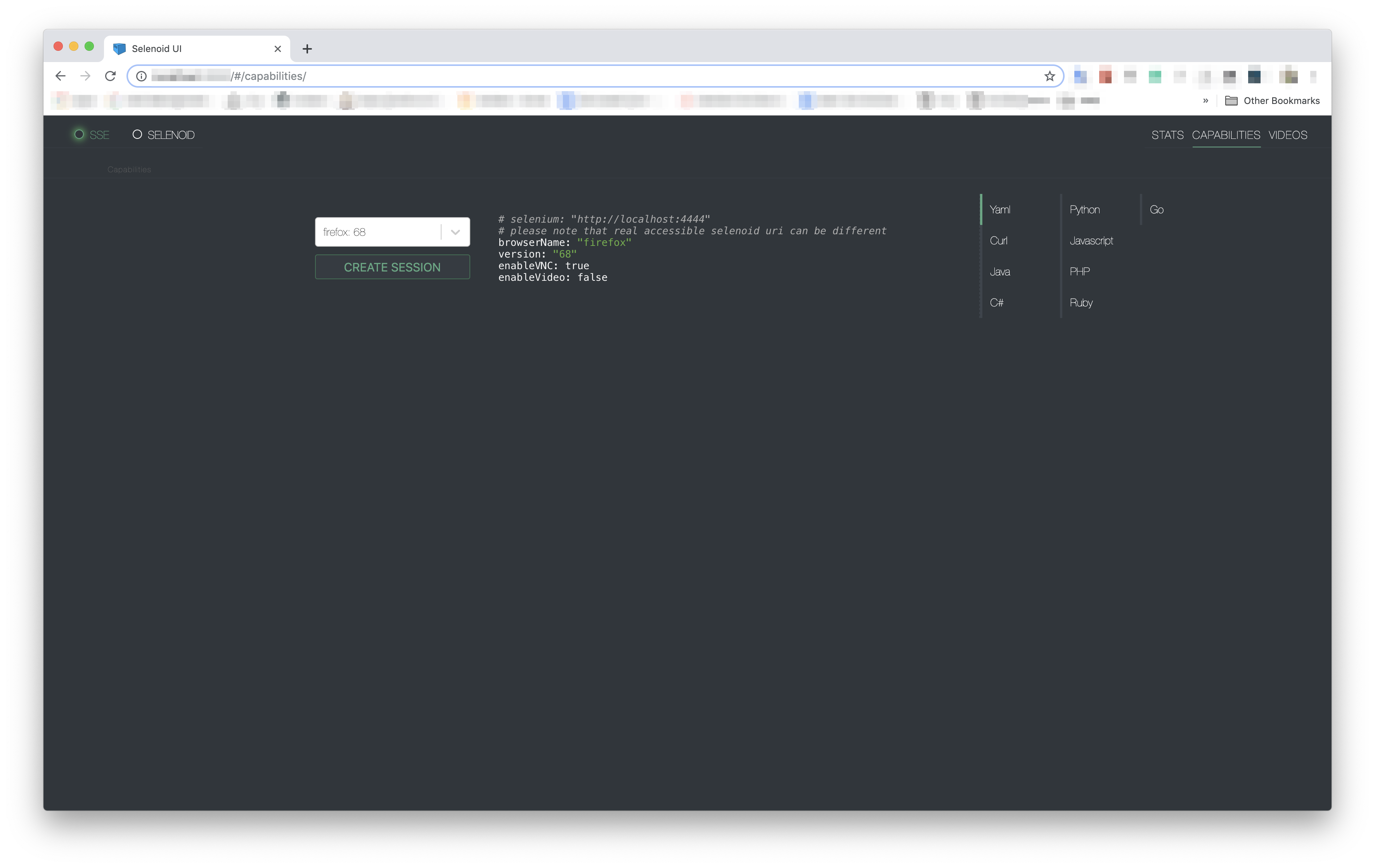
Section titled “Capabilities”You can choose browser from the available browser list and UI will provide an example of setup with right capabilities. Examples available for several languages.
Manual run
Section titled “Manual run”With selection of the browser it could be launched manually right in the
interface. Technically, that’s just a session start call with timeout of 60m
and special label manual: "true". Based on that label, interface will
highlight the session and add removal button.
Logs & VNC
Section titled “Logs & VNC”If you get browser from websummoner with enableVNC=true capability, you can
see list of available at stats page. Notice VNC badge.
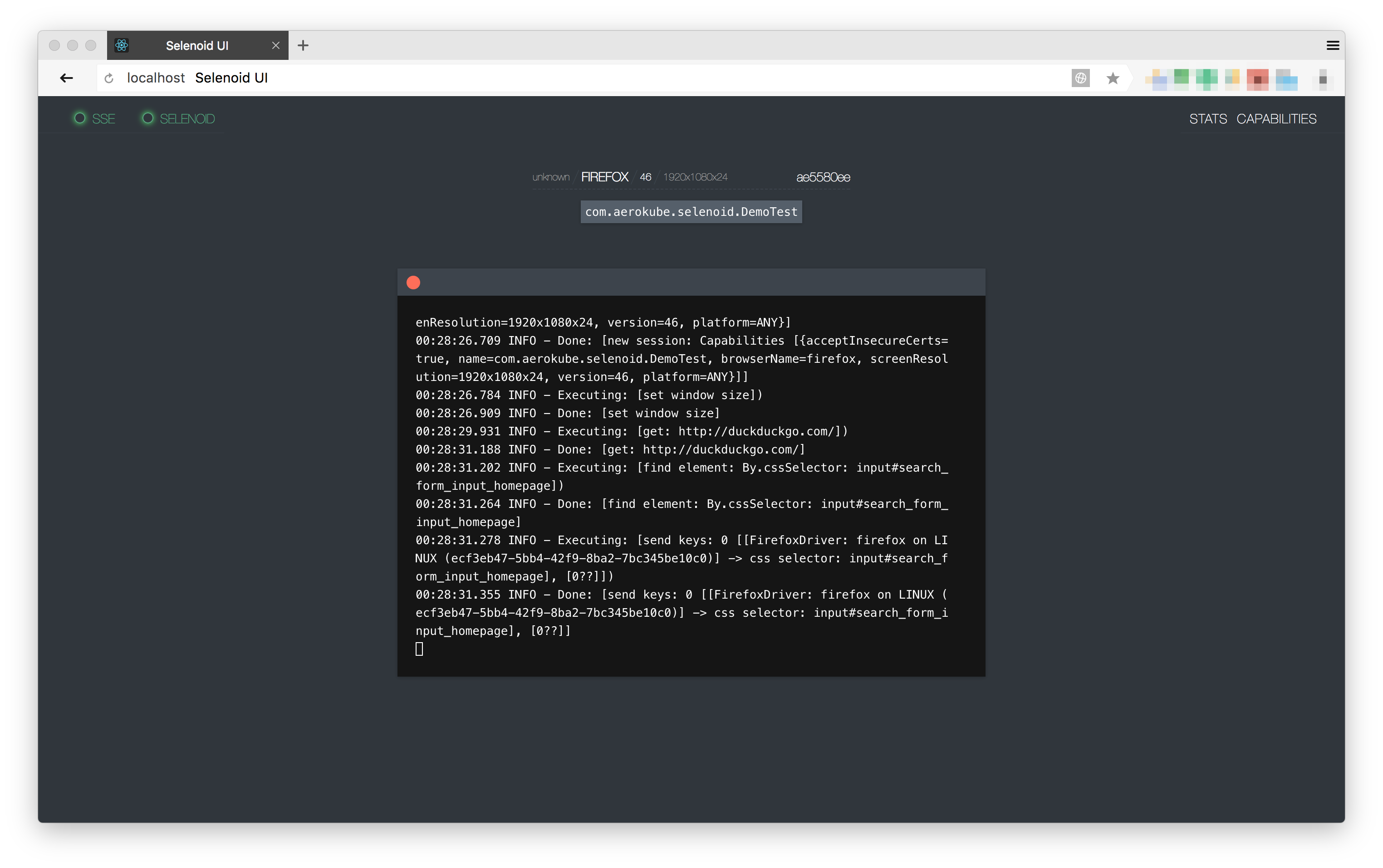
VNC allows to see and interact with browser while log will reflect all driver actions:
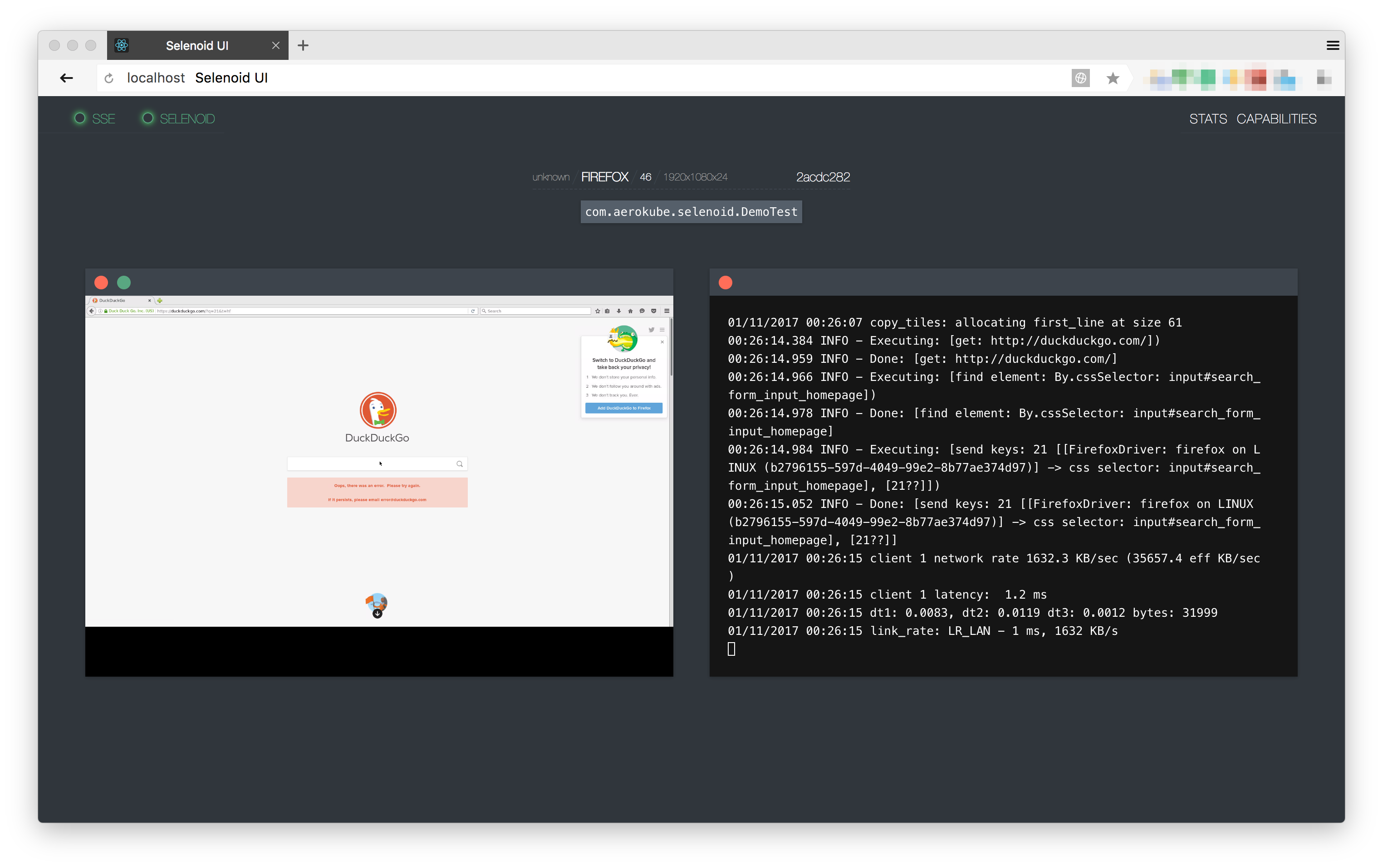
Pay attention to named sessions - you can achieve same result with
name=your.test.name capability.
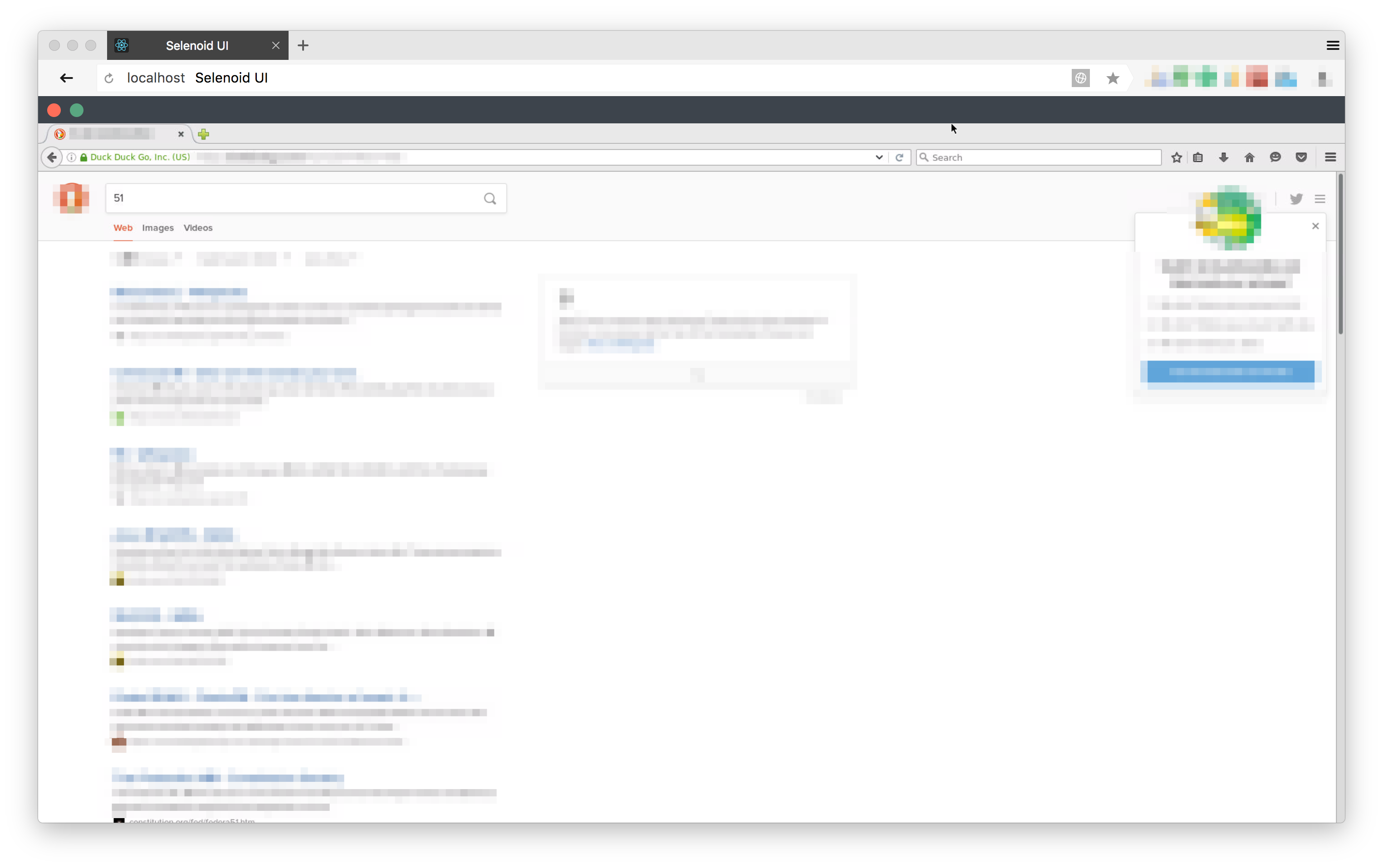
Please refer to websummoner documentation about VNC usage.
You can see logs of docker container for each session even without vnc and name (no any additional action required).
Videos
Section titled “Videos”You can view recorded videos, accessible on the websummoner, in case there are any on a separate tab.